ArcGIS Online Residency Verification
With service pack 2021.1.3, Parks & Rec (TPAR) residency verification has been enhanced to provide a more robust integration with ArcGIS online service. Examples include residency verification allowing for the precise latitude and longitude of an address and the creation of boundary layers to determine whether an address lies within a city's boundary.
The following tutorial provides guidance in setting up your ArcGIS service for integration with TPAR contact residency verification. If you need additional assistance with ArcGIS setup, contact your ArcGIS representative.
 ArcGIS Setup
- Log into the ArcGIS Developer's console — https://developers.arcgis.com/ — and click Dashboard.
-
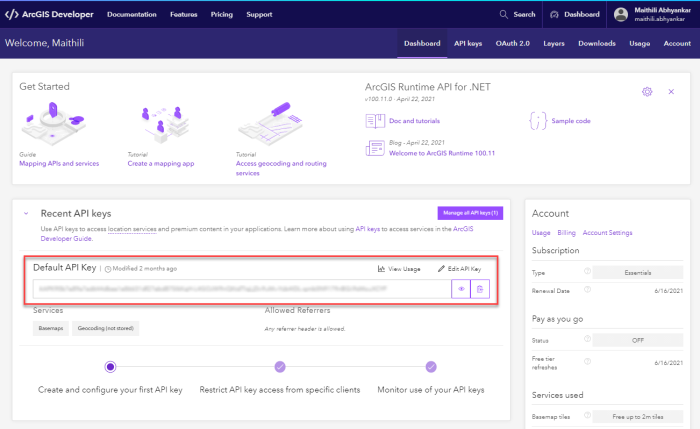
The API Key is created by default. This key is a permanent access token that defines the scope and permission for granting the TPAR application access to ArcGIS location services and will be saved in TPAR System Settings:
-
Create and configure a Feature Layer to determine the territory boundary.
-
Click Layers:

-
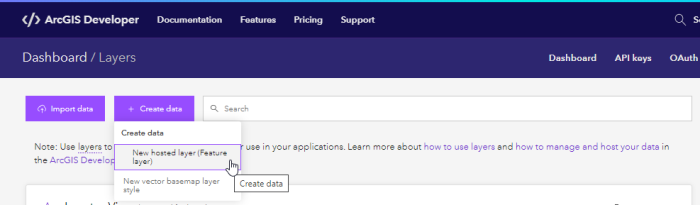
Create a new layer by clicking the Create Data button:
-
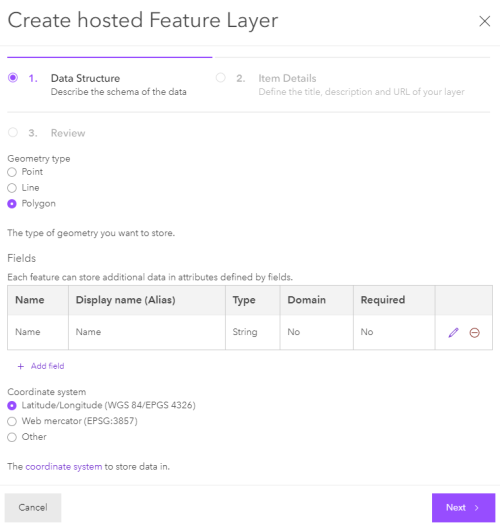
For Geometry type, select Polygon and add at least one field to define additional data for the layer. Click Next:
-
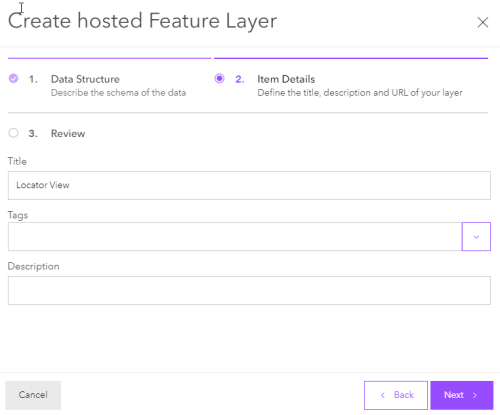
Enter the Title. Tags and Description are optional. Click Next:
-
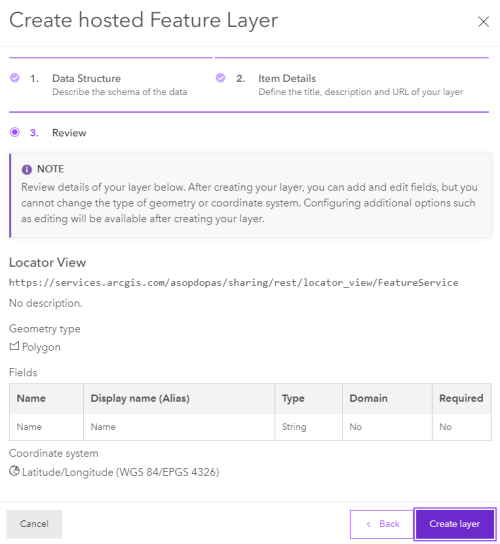
Review all the details and click Create Layer:
-
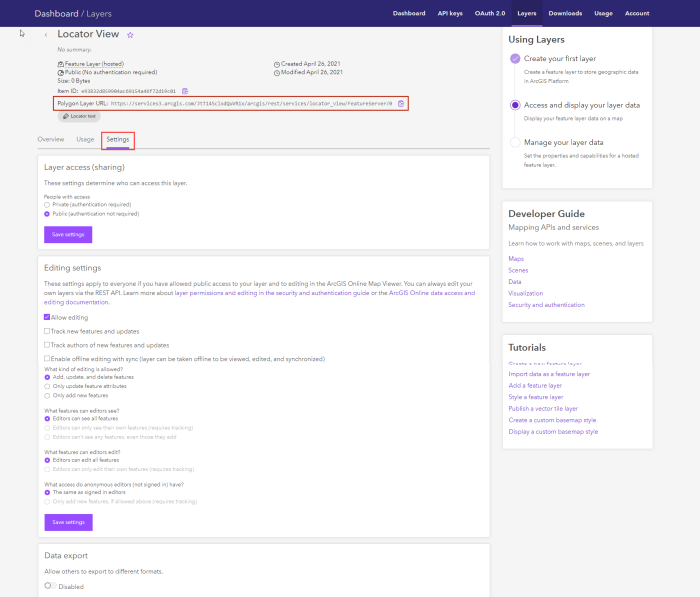
Once the layer is created, go to View Details, then to the Settings tab. Configure and save the settings:
-
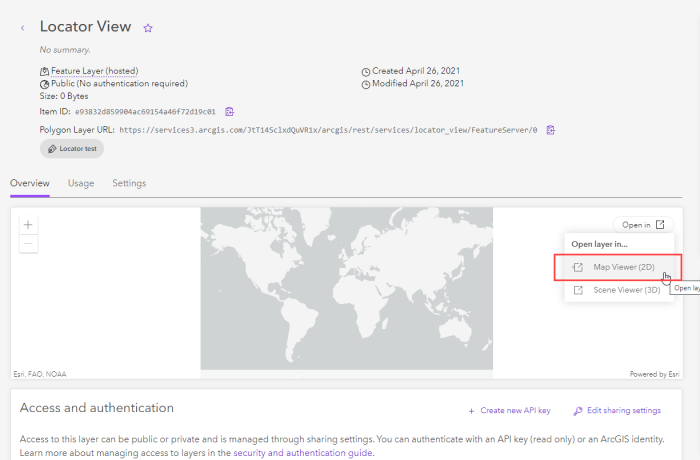
To create a polygon boundary, select the Overview tab and select Open Layer in Map Viewer (2D):
-
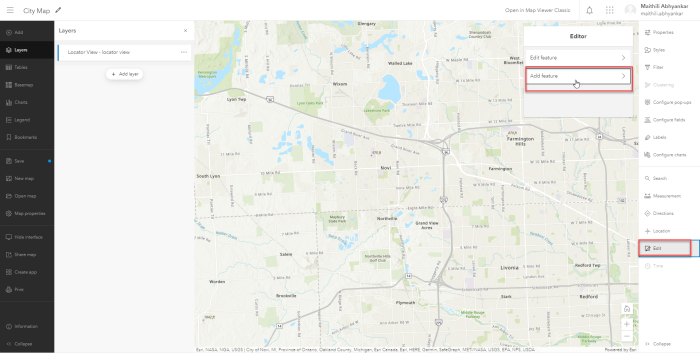
In the Map Viewer, select Edit, then Add feature to add a new one and Edit Feature to update the existing boundary:
-
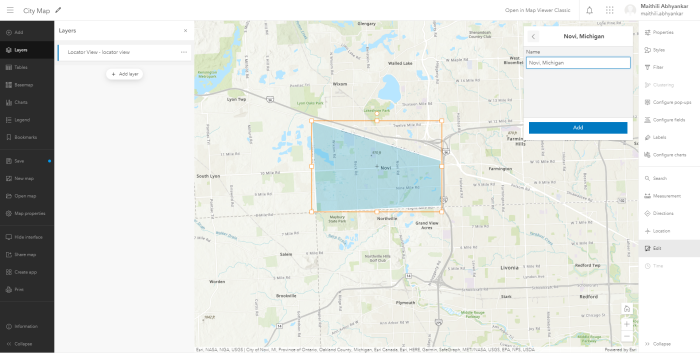
Draw the city boundary, enter the additional data and click Add:
-
-
Add the Feature Layer to the Default API key.
-
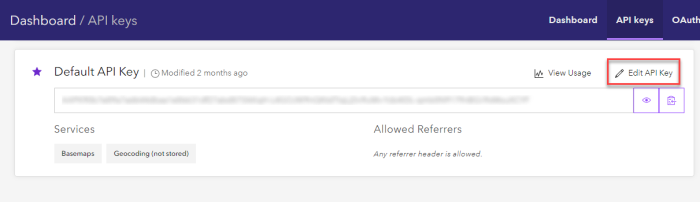
Select the API Keys tab and click Edit API Key:
-
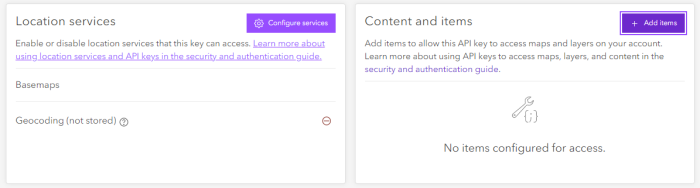
Scroll down to the Content and Items section and click Add Items:
-
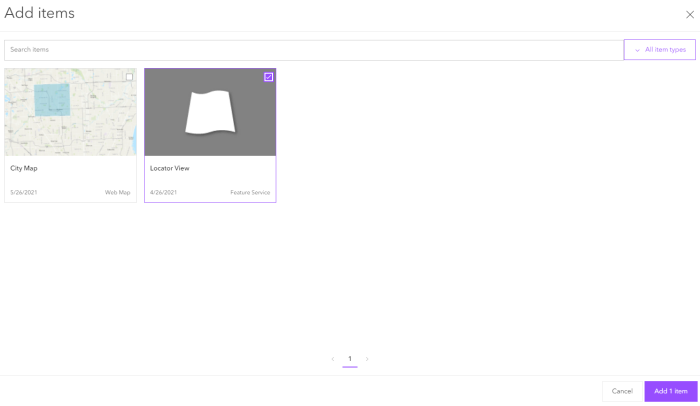
Select the Feature Layer created in Step 3f and add it:
-
TPAR Setup
-
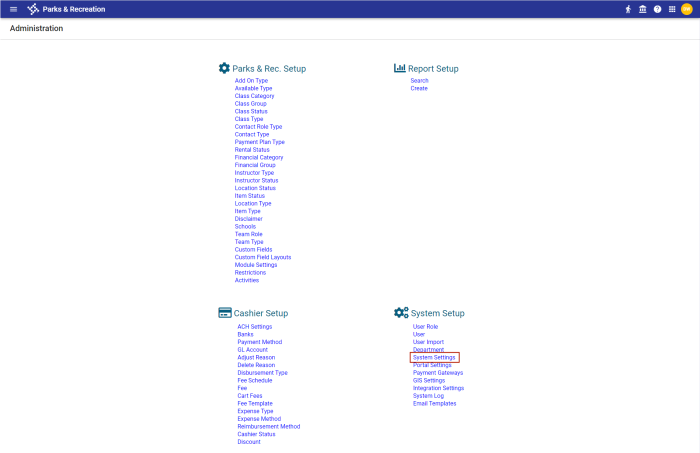
Log into the TPAR back office and navigate to Administration > System Setup > System Settings:
-
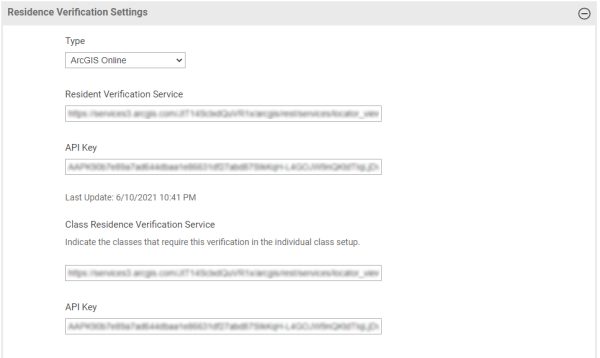
Scroll down to the Residence Verification Settings section to enter the values for the Resident Verification Service endpoint and the API Key:
-
From the Type drop-down, select ArcGIS Online.
The Resident Verification Service is the Service URL copied from ArcGIS (part 1, step 3f).
The API Key is the default API key copied from the ArcGIS Dashboard.
Note: Prior to TPAR service pack 2021.1.3, the API Key field was labeled Token. The API Key is a permanent access token.
-
Click Save. A background process scans all contacts to update their residency through ArcGIS.